|
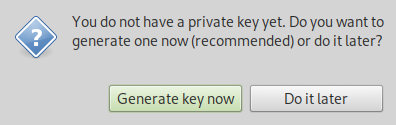
Start GPA! If you have no private key GPA will ask if you would like to generate one now.
|
|
Select 'Generate key now'
|
|
|
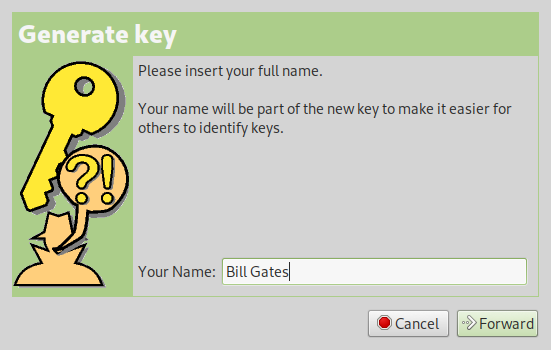
Use a fake name here to maintain anonymity. Select 'Forward'.
|
|
|
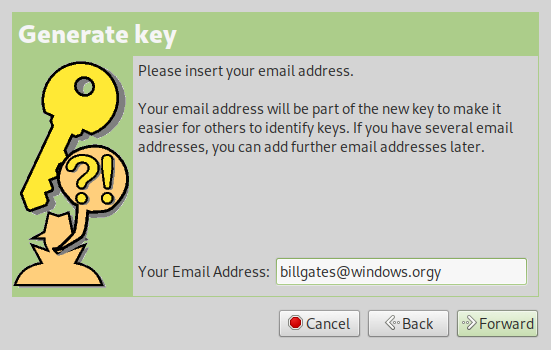
Use a fake email address to maintain anonymity. Select 'Forward'.
|
|
|
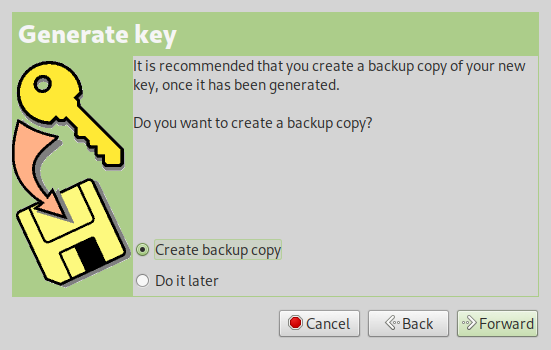
Select 'Forward' to create a backup copy of your private/public keys.
|
|
|
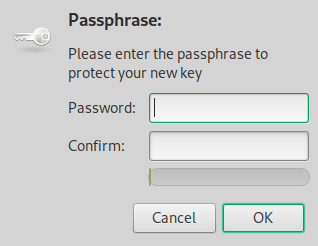
Enter a strong password to protect your new keys.
|
|
After password creation you choose a directory to backup your new private/public keys.
|
|
|
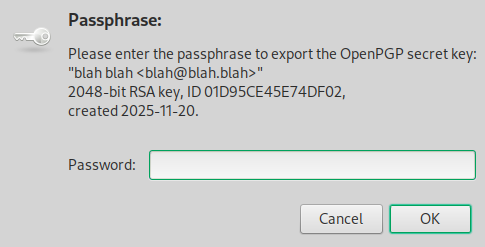
After choosing a directory for backup you'll be asked for the password you just created.
|
|
|
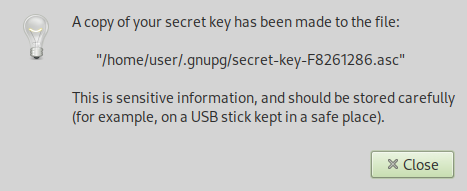
Great work! You created a backup of your keys! Don't let it fall into the wrong hands! Anybody who obtains it will be able to decrypt messages intended for you alone. Not only would this place you in danger but you could put your friends in danger as well. Maybe you wanna move this backup off your computer and unto an encrypted external hard drive? Yeah, That'd be smart.
|
|
|
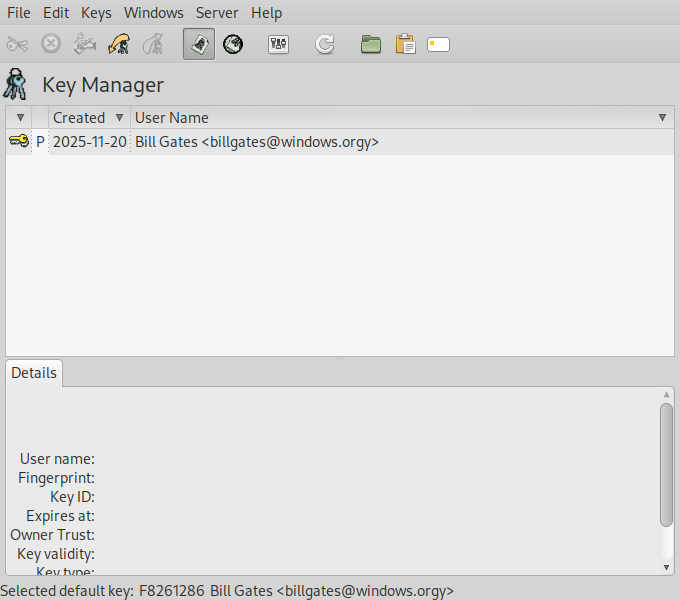
Here's your key! yay!
|
|
Send your freinds an ecrypted message
|
|
If you want to send your freinds a PGP encrypted message you'll need to get your friends Public PGP keys. Let's write an email to our freinds at tor.taxi and thank them for doing basic research on onion sites and providing honest data to the public for so many years.
|
|
Our freinds Public PGP Key is on their homepage. Here is a link. You can save the link directly or you can open the link and copy and paste all the text into a file. Save the file as 'pgp.txt'. It is necessary to import the file into GPA before we can encrypt our message.
|
|
Go to 'Keys' -> 'Import Keys...' or simply click the 'Import Keys' button near top left.
|
|
Select tor.taxi's Public Key file 'pgp.txt' and import it.
|
|
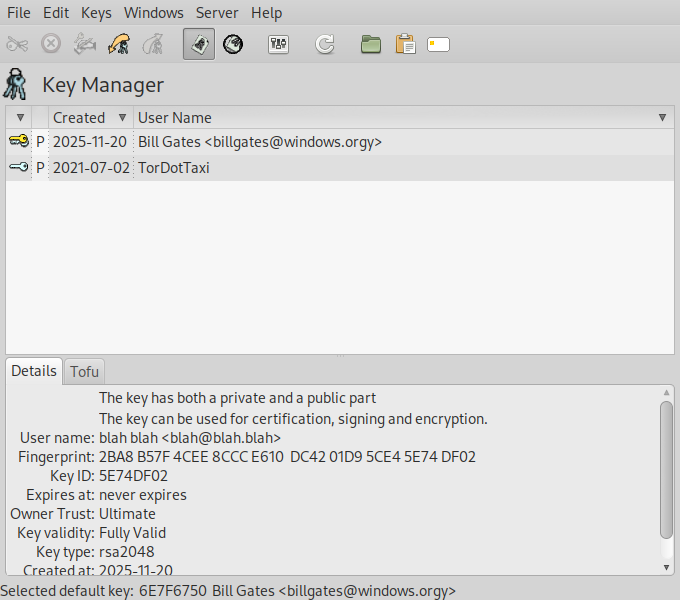
Here we see our friends public key has been imported in Key Manager right below our own.
|
|
|
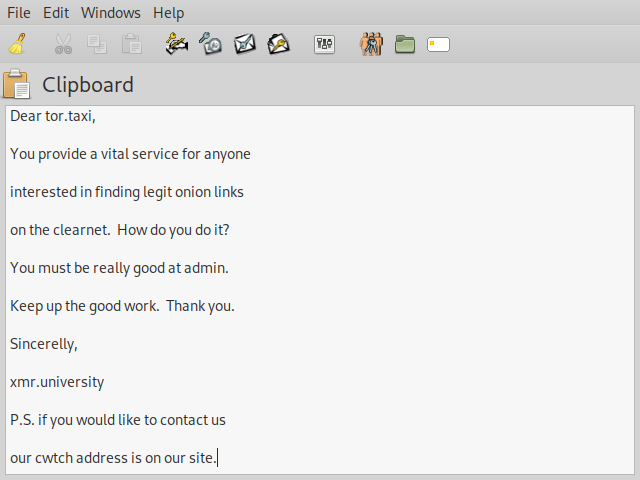
Open the Clipboard. Type a heartfelt message to our freinds at tor.taxi.
|
|
Once your message is complete hover over icons at top and select 'Encrypt the buffer text'.
|
|
|
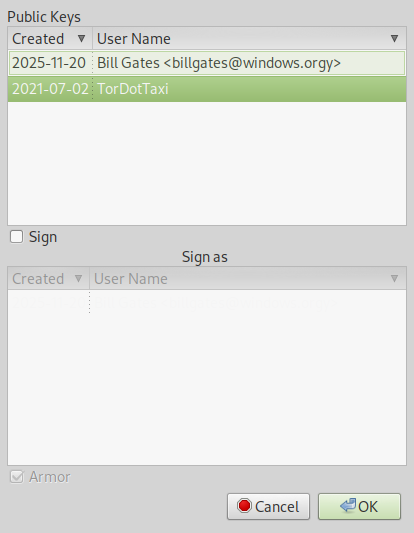
Select our freinds Public Key from the list. Select 'OK'.
|
|
|
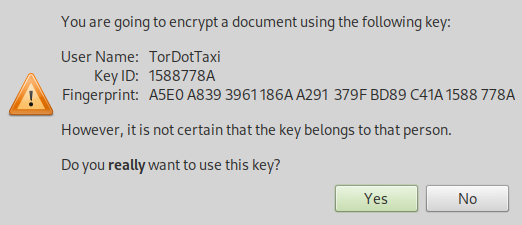
Select 'Yes'.
|
|
|
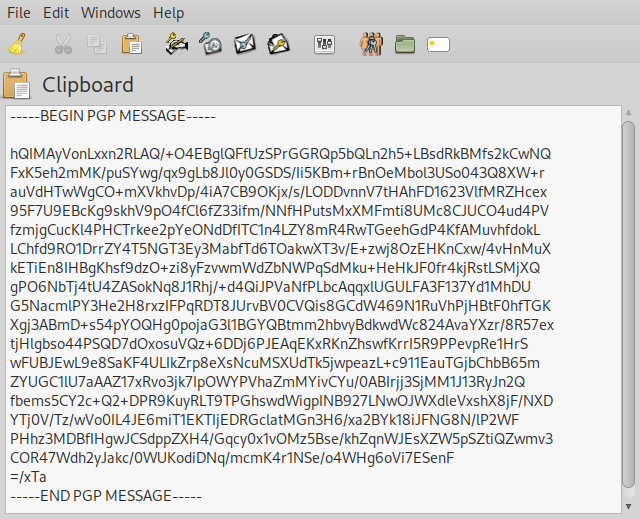
Your encrypted message will look somewhat like the following one.
|
|
|
Now copy your encrypted 'PGP MESSAGE' message and paste it into an email to contact@tor.taxi
|
|
Make sure they hae your Public Key if you want them to reply with an encrypted messsage!
|
|
You did really well. I'm proud of you.
|